

USB flash drives are one of the easiest ways to move files between computers, but they’re also vulnerable to accidental deletion, unwanted file modifications, and malware that silently copies itself onto removable drives.
If you’ve ever plugged your USB drive into a public computer or shared one with coworkers, you’ve probably wondered if there’s an easy way to prevent anyone – or anything – from changing its contents.
That’s where Yamira comes in.
Yamira is a free, open-source Windows utility that allows you to effectively make an NTFS-formatted USB drive read-only by changing file permissions. Unlike encryption software, it doesn’t hide or lock your files behind a password. Instead, it prevents you from modifying or deleting files while still allowing you to view them.
In this review, we’ll explain how Yamira works, what its strengths and limitations are, and whether it’s the right choice for protecting your USB drives.
What is Yamira?
Yamira is a lightweight Windows utility designed to protect USB storage devices from unwanted modifications.
Instead of using encryption or proprietary drivers, Yamira changes file permissions to NTFS on the USB drive. Once protection is enabled, files can still be opened and copied, but they cannot be edited, renamed, or deleted by standard Windows users.
Since it relies on Windows’ built-in NTFS security features, there are no background services or drivers running constantly.
key features
- free and open source
- small portable application
- NTFS effectively makes the USB drive read-only.
- No drivers or background services
- Security can be enabled or disabled in seconds
- Compatible with modern Windows versions

How does Yamira work?
Many people believe that Yamira physically locks the USB drive. It doesn’t work like that.
Instead, Yamira modifies it NTFS Access Control List (ACL) On the drive. These permissions determine who can read, write, modify, or delete files.
After security is enabled:
- The files remain visible.
- Files can still be copied to the USB drive.
- Creating new files is blocked.
- Existing files cannot be modified.
- Renaming of files is prevented.
- Deleting files is disallowed.
When protection is turned off, normal write access is restored.
Because security depends on NTFS permissions, the drive Must be formatted as NTFS.

Yamira is especially useful for people who regularly share USB drives or want to reduce the risk of accidental file changes.
It is suitable for:
- students taking assignments or projects
- office professionals are transporting documents
- IT technician using USB device
- Photographers delivering photos to customers
- teachers sharing study material
- Anyone who repeatedly plugs a USB drive into multiple Windows computers
Yamira is not designed for every situation.
You may want a different solution if:
- You need password protection.
- You want full-disk encryption.
- Your USB drive uses FAT32 or exFAT.
- You often use macOS or Linux.
- You need hardware-level write protection.
For confidential files, consider using BitLocker (available on supported Windows versions) or veracryptBoth focus on encryption rather than write protection.
Getting started is straightforward.
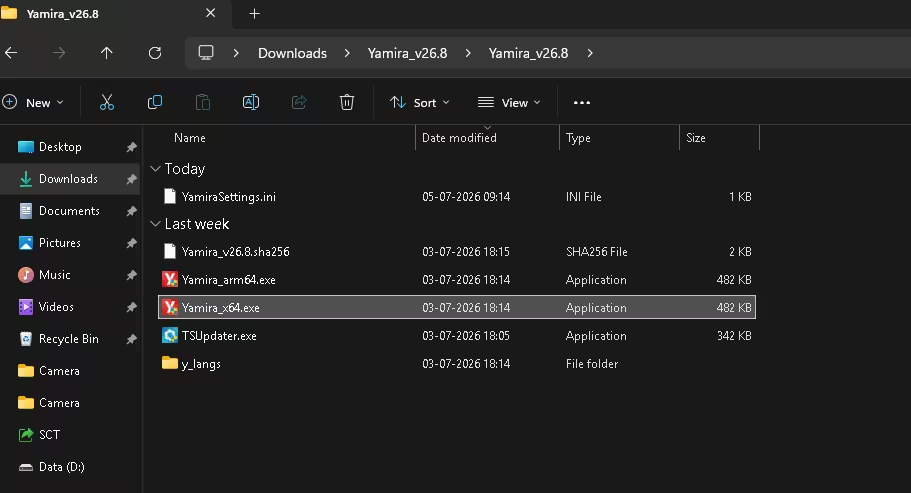
- Download the latest release from the project official GitHub page.
- Extract the downloaded archive if necessary.
- Run the application.
- Connect your NTFS-formatted USB drive.
- Select drive.
- Enable security.
This process usually takes only a few seconds.
After launching Yamira:
- Connect your USB drive.
- Select the correct drive.
- Click the option to enable security.
- Wait for the operation to complete.
Once finished, Windows will prevent modifications to protected files.
If you need to add or remove files later:
- Open Stop.
- Select protected drive.
- Disable Security.
- Make your changes.
- Re-enable protection when finished.
This makes Yamira practical for users who update the contents of their USB drives from time to time.

lightweight
Yamira is extremely small and does not consume system resources.
no background service
It does its job without constantly running in memory.
open source
Being open source allows anyone to inspect the code, which increases transparency.
easy to use
The interface is simple enough for beginners.
Free
There are no subscriptions, ads or hidden fees.
Although Yamira is useful, it has some significant limitations.
NTFS only
The USB drive must use the NTFS file system.
no encryption software
Anyone with read access can still copy the files.
Windows centric
Since Yamira relies on NTFS permissions, security may not behave the same way on Linux or macOS.
no password protection
Password is not required to disable security.
| Pros | Shortcoming |
|---|---|
| free and open source | NTFS drives only |
| lightweight | Does not encrypt files |
| Easy to enable or disable | Windows centric |
| no driver required | no password protection |
| Uses built-in Windows security | No hardware write protection |
| Speciality | stop it | BitLocker | Hardware write-protect switch |
| Free | Yes | Included with supported Windows versions | No |
| Prevents file modification | Yes | No | Yes |
| encrypts files | No | Yes | No |
| password protection | No | Yes | No |
| Requires special hardware | No | No | Yes |
Based on its design and publicly available source code, Yamira appears to be a safe utility for its intended purpose.
It uses Windows’ built-in NTFS permission system instead of installing a kernel driver or making permanent changes to the operating system.
Thanks any software, it’s best to download it from the official project page to make sure you’re using an authentic release.
Does Yamira encrypt my files?
No, Yamira prevents modifications by adjusting NTFS permissions. It does not encrypt your data.
Does it work with FAT32 or exFAT?
No, Yamira requires an NTFS-formatted USB drive.
Can viruses still read my files?
Yes. Write protection does not prevent files from being read. It primarily prevents modifications and deletions.
Can I still copy files from a USB drive?
Yes. Protected files remain readable and can be copied elsewhere.
Does it work on Windows 11?
Yes, it is designed for Windows systems that support NTFS permissions.
Yamira focuses on one job – protecting the contents of an NTFS USB drive from unwanted changes – and it does it well.
It is not a replacement for an encryption tool or antivirus software, but it does provide an easy way to reduce the risk of accidental deletion or unauthorized modifications when sharing a USB drive.
If you regularly keep documents, software tools, or project files on a flash drive and want a lightweight, free solution that doesn’t require complex setup, Yamira is worth a try.
Rating: 4.5/5
Best for: windows Users who want a simple, free way to effectively make a USB drive read-only.
Learn more from Techno360
Subscribe to get the latest posts delivered to your email.


![Audials Vision 2026 SE: Get Full Version for Free [Giveaway] | Free Download](https://www.zelvira.xyz/wp-content/uploads/2026/05/Audials-Vision-2026-Box-Shot.avif.avif)