
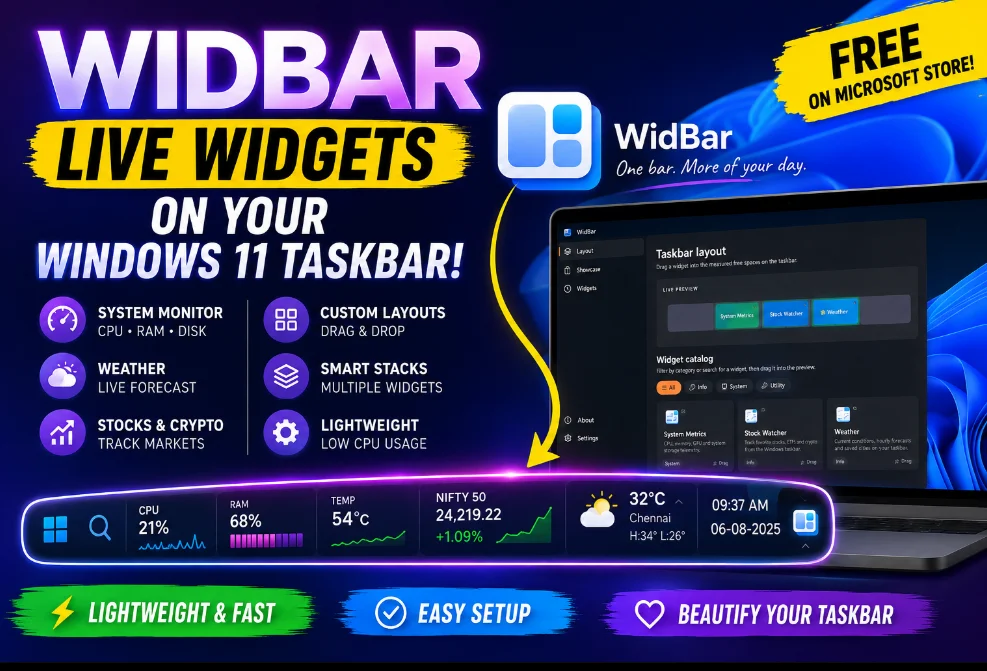
Microsoft gave Windows 11 a widgets panel, then tucked it behind a button most people have never clicked. Meanwhile, the taskbar — the one strip of screen you look at hundreds of times a day — sits mostly empty on any monitor wider than a laptop.
An independent developer named Andrea Del Bello clearly noticed the same thing. His answer is WidBar, a free utility that measures the unused space on your taskbar and lets you drag live widgets straight into it. I’ve been running it on my Windows 11 machine for the past week, keeping an eye on my CPU, the Chennai weather and even NIFTY 50 — all without opening a single extra window. Here’s everything you need to know, including how to set it up and whether it’s worth your taskbar real estate.

What Exactly Is WidBar?
WidBar is a taskbar widget system for Windows 11. Instead of hiding information inside a slide-out panel, it places compact, always-visible modules directly on the taskbar itself — between your pinned apps and the system tray, wherever free space exists.
The clever part is how it handles space. WidBar scans your taskbar (on every monitor, if you have several), works out which areas are genuinely free, and shows you a live preview inside the app. You then drag widgets into those green zones. When you open a pile of apps and the taskbar gets crowded, an optional “adaptive visibility” mode tucks the widgets away automatically and brings them back once room frees up. It’s a small touch, but it’s the kind of polish that makes the whole thing feel native rather than bolted on.
The app itself is just the foundation. Every widget ships as its own tiny app on the Microsoft Store, and WidBar detects new ones the moment they’re installed. That design choice matters: any developer can build and publish a widget without waiting for approval from WidBar’s creator, which means the catalog can grow far beyond what one person could maintain alone.
The 7 Widgets You Can Use Today (Plus Smart Stack)
When WidBar first appeared in beta, it shipped with only two widgets. The lineup has since grown to seven, and they cover most everyday needs surprisingly well.
| Widget | What It Puts on Your Taskbar |
|---|---|
| System Metrics | Live CPU, RAM, GPU, disk, network activity and supported temperature readings — a mini hardware monitor that’s always in view. |
| Weather | Current conditions, hourly forecast and tomorrow’s outlook for any saved city, with Celsius/Fahrenheit and wind-speed unit options. |
| Stock Watcher | Real-time prices for stocks, ETFs, indices and crypto. It found NIFTY 50, BANK NIFTY and NSE small-cap indices instantly in my testing. |
| Media Now Playing | Track info, artwork and playback controls for whatever is playing — music, video, even browser tabs. |
| Shelf | One-click access to pinned folders, recent files, favourites and your clipboard history. |
| Pomodoro Focus | A work-session timer and stopwatch sitting right where you can’t ignore it. |
| News | Rotating headlines from trusted sources, glanceable from the taskbar. |
On top of these, there’s Smart Stack — a built-in utility that combines several widgets into a single taskbar slot and cycles through them. Short on taskbar space? Stack the weather, stocks and system stats into one rotating tile and reclaim the rest.

How to Install WidBar on Windows 11
Setup takes under two minutes, and there’s no configuration wizard to fight through.

Getting Around the Interface
WidBar keeps things to three tabs, and each one does exactly what its name suggests:
- Layout — the heart of the app. A live preview of your taskbar shows free space in green, and you drag widgets into it from the catalog below.
- Showcase — the widget gallery, where you browse and install new widgets from the Store.
- Widgets — a simple list of everything you’ve already installed.
A gear icon in the corner opens the app-wide settings — theme, language, startup behaviour and more. I’ll come back to those in a moment.
Adding Your First Widget (The 2-Step Dance)
Because widgets are separate Store apps, adding one is a two-part job: install it, then place it.
Step 1 — Install from the Showcase

Step 2 — Drag It onto the Taskbar
Changed your mind about placement? Drag it to a different spot anytime. There’s even a setting that lets you press-and-hold widgets directly on the taskbar itself and slide them around — no need to open the app at all.


Customizing Widgets: Deeper Than Expected
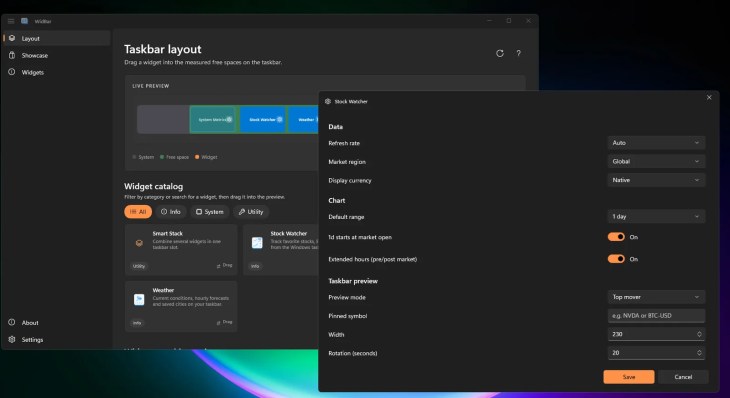
This is where WidBar genuinely surprised me. Every widget carries its own settings page, reached from Layout → Widgets on this monitor → Configure (the gear icon next to each placed widget). Changes apply the moment you close the window.
The Weather widget offers four presentation styles — from a compact icon-and-temperature readout to a detailed strip with feels-like, highs/lows and humidity. You pick your units, set a refresh interval, and either save cities manually or let it follow your device location.

The Stock Watcher goes even further. You control the refresh rate, market region and display currency, choose the default chart range, toggle pre/post-market extended hours, and decide what the taskbar tile shows — a pinned symbol of your choice or the day’s top mover, rotating at an interval you set. As someone who tracks Indian markets daily, I typed “Nifty” into its search and it pulled up NIFTY 50, BANK NIFTY, small-cap and mid-cap indices without a hiccup. Crypto tickers like BTC-USD work too.

App-Wide Settings Worth Toggling
Beyond per-widget options, the main Settings page covers the essentials:
- Theme — light, dark, or follow Windows (with proper Mica material).
- Flyout animation — how widget pop-ups open when clicked.
- Start with Windows — so your widgets are live from the moment you sign in.
- Launch in background — starts WidBar silently in the notification area, no main window.
- Adaptive visibility — hides widgets when open apps need the space, restores them afterwards. Leave this on.
- Move widgets from the taskbar — enables direct drag-and-drop repositioning on the taskbar itself.

Performance: How Heavy Is It?
Any tool that lives permanently on your taskbar had better be light, so I watched it in Task Manager throughout my testing. With all widgets installed and running, WidBar sat at roughly 290 MB of RAM and near-zero CPU (around 0.6% during active refreshes). On disk, the app plus every widget together take up a little over 117 MB.
For comparison, a single Chrome tab routinely eats more memory than WidBar’s entire widget ecosystem. On any machine with 8 GB of RAM or more, you simply won’t notice it.

What Could Be Better
Honesty time. Seven widgets is a solid start, not a finished ecosystem — there’s no dedicated clock/calendar widget yet, and no to-do integration. The two-step install (Store page per widget) is smart architecture but slightly clunky the first time you do it. And since the app is still young, you may hit the occasional rough edge as Windows 11 updates roll through. None of these are dealbreakers; they’re the normal growing pains of a one-developer project that’s moving fast.
If you enjoy squeezing more out of Windows 11, this pairs nicely with the other tools in our Windows customization coverage — and since it’s completely free, it fits right into our free software picks too.
⬇️ Get WidBar Free from the Microsoft Store